• 2 min read
Kimi Work turns desktop AI into a local agent
Kimi Work is a desktop agent that can access local files, automate browsers, run scheduled tasks, and generate Office documents.
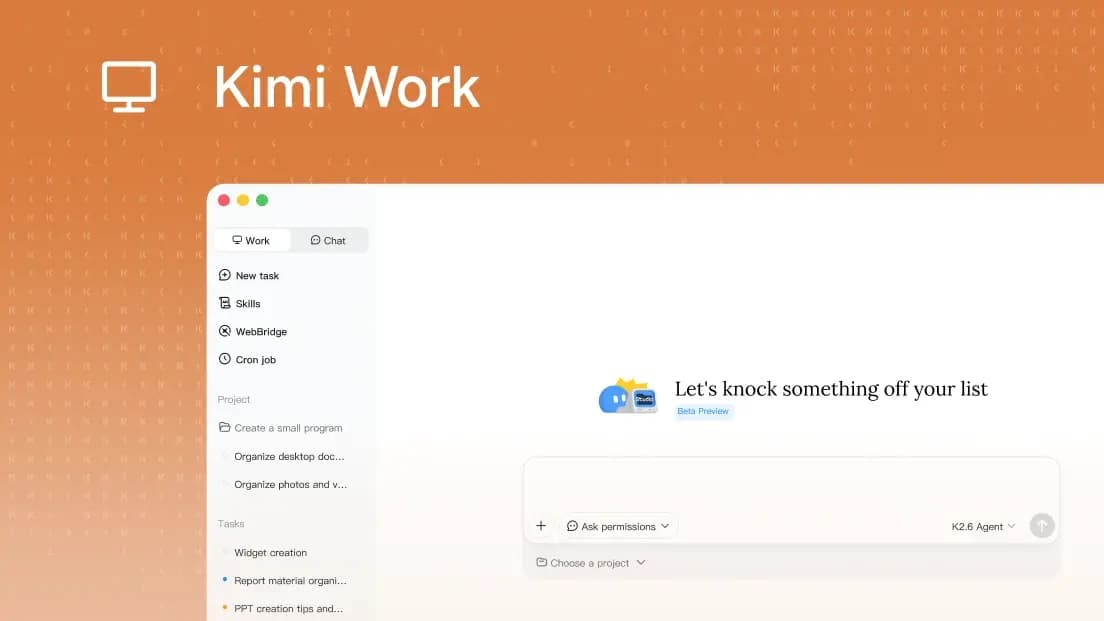
Image: Hacker News
Kimi Work pitches itself as an AI desktop for knowledge work, focused on automating tasks that span local files, web browsing, code execution, and office productivity tools. Unlike the regular Kimi web app, which the company says is aimed at quick chats and queries, Kimi Work is designed as a local agent for deeper workflows.
According to its product page, Kimi Work can mount local folders, run Python in the background, and execute scheduled tasks through a built-in Cron engine. The idea is straightforward: users can set recurring jobs such as drafting daily briefings in the morning or processing datasets overnight, while the app runs quietly in the background.
A key part of the pitch is WebBridge, a browser automation system that lets Kimi navigate the web “like a human.” The company says users can give it a goal and it will move across tabs, click, scroll, extract data, and complete multi-step web tasks on its own. Example use cases include checking the latest news on a website, summarizing it, or scraping historical stock data into a local Excel file.
Kimi Work also promotes agent swarm features for more complex tasks. It says the software can coordinate multiple specialized agents to tackle layered problems in parallel, then turn the resulting research into PowerPoint decks or Excel sheets.
The product is also positioned for finance users. Kimi says Kimi Work includes native access to market data covering A-shares, Hong Kong stocks, and US equities, with support for pulling earnings reports, analyzing anomalies, and reconciling spreadsheets through natural-language prompts.

Recommended reading
X Rebuilt Its Android App to Speed Up Releases
On security, the company says users retain control over their files through an “Ask before acting” safeguard. Kimi Work will request explicit authorization before modifying files, overwriting content, or running code in local directories. For overnight jobs, the FAQ says users can enable Keep Computer Awake in settings so scheduled tasks continue running.

Computing Editor
Tomas lives in the terminal. He covers chips, laptops, and operating systems with a focus on performance and efficiency. He reads kernel changelogs the way other people read fiction, and he's always on the hunt for the perfect mechanical keyboard switch. If it processes data, Tomas has an opinion on it.
via Hacker News